
Do you want to clone a WordPress page? Cloning a WordPress page is one of those tasks that can save you hours of work — especially if you’re managing a content-heavy site, building landing pages, or maintaining a consistent design across multiple sections. Whether you’re a blogger, developer, marketer, digital signature certificate agency, business consultant, or small business owner, duplicating pages allows you to reuse layouts, preserve formatting, and test new ideas without affecting the live version.
In this comprehensive guide, we’ll explore multiple methods to clone a WordPress page, including plugin-based solutions, manual techniques, and advanced export/import strategies. You’ll learn how to choose the best method for your workflow, avoid common pitfalls, and ensure your cloned pages are optimized for SEO and performance.
- Why You Might Need to Clone a WordPress Page
- Methods to Clone a WordPress Page
- 1. Using a Plugin (The Easiest Way)
- 2. Using Page Builder Tools
- 3. Manual Copy‑Paste Method
- 4. Export/Import Method
- Best Practices When Cloning Pages
- Comparison of Methods: Clone a WordPress Page
- Advanced Tips for Developers
- Real‑World Use Cases
- Conclusion: How to Clone WordPress Page
Why You Might Need to Clone a WordPress Page
Cloning isn’t just about convenience — it’s about efficiency and strategy. Here are the most common reasons:
- Consistency in design – Maintain branding across multiple pages.
- A/B testing – Create variations of a landing page to test conversions.
- Content templates – Reuse layouts for blog posts, product pages, or portfolios.
- Safe editing – Duplicate a page before making risky changes.
Methods to Clone a WordPress Page
1. Using a Plugin (The Easiest Way)
Plugins are the most popular method because they require no coding and preserve metadata like SEO tags, featured images, and custom fields.
Popular Plugins:
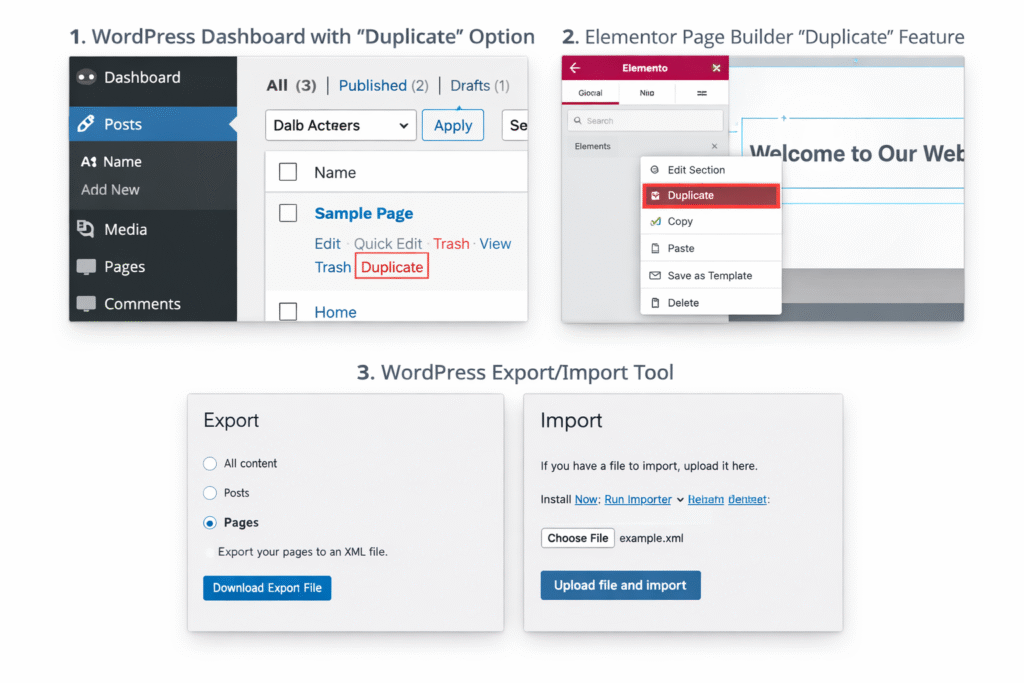
- Duplicate Page – Adds a “Duplicate” option under each page/post.
- Yoast Duplicate Post – Lets you clone and edit instantly.
- WP Page Clone by WP Academy – Simple one‑click duplication.
Step‑by‑Step:
- Go to Plugins > Add New.
- Search for Duplicate Page.
- Install and activate.
- Hover over the page → Click Duplicate.
- A new draft copy will appear in your list.
2. Using Page Builder Tools
If you’re using a builder like Elementor, Divi, or WPBakery, duplication is built in.
Elementor:
- Open the page in Elementor.
- Right‑click a section → Select Duplicate.
- Save as a template to reuse across multiple pages.
Divi:
- Use the Page Manager to clone layouts.
- Export/import layouts for use on other sites.
WPBakery:
- Copy content blocks directly.
- Save templates for future use.
3. Manual Copy‑Paste Method
This is the most basic approach, but it works without plugins.
- Open the page in the editor.
- Copy all content.
- Create a new page → Paste content.
- Adjust formatting, SEO settings, and featured image.
⚠️ Downside: This method doesn’t preserve metadata like SEO tags or custom fields.
4. Export/Import Method
Perfect for moving pages between different WordPress sites.
- Go to Tools > Export.
- Select Pages → Download the XML file.
- On another site, go to Tools > Import.
- Upload the file → Import page.
Best Practices When Cloning Pages
Cloning is powerful, but it must be done carefully to avoid SEO and usability issues.
- Rename the duplicate to avoid confusion.
- Check internal links to ensure they point correctly.
- Avoid duplicate content penalties by modifying text.
Comparison of Methods: Clone a WordPress Page
| Method | Ease of Use | Preserves SEO | Best For |
|---|---|---|---|
| Plugin | ⭐⭐⭐⭐⭐ | Yes | Beginners, quick duplication |
| Theme/Builder Tools | ⭐⭐⭐⭐ | Yes | Designers using builders |
| Manual Copy-Paste | ⭐⭐ | No | Small edits, no plugins |
| Export/Import | ⭐⭐⭐ | Yes | Migrating between sites |
Advanced Tips for Developers
If you’re comfortable with code, you can duplicate pages manually via the database or custom functions.
Duplicate via Functions.php
Add this snippet to your theme’s functions.php file:
function rd_duplicate_post_as_draft(){
    global $wpdb;
    if (!isset($_GET['post']) || !isset($_GET['action']) || $_GET['action'] != 'rd_duplicate_post_as_draft') {
        wp_die('No post to duplicate has been supplied!');
    }
    $post_id = absint($_GET['post']);
    $post = get_post($post_id);
    $new_post_id = wp_insert_post(array(
        'post_title' => $post->post_title . ' Copy',
        'post_content' => $post->post_content,
        'post_status' => 'draft',
        'post_type' => $post->post_type
    ));
    wp_redirect(admin_url('post.php?action=edit&post=' . $new_post_id));
    exit;
}
add_action('admin_action_rd_duplicate_post_as_draft', 'rd_duplicate_post_as_draft');
This creates a “Duplicate” option in your admin panel.
Real‑World Use Cases
- Marketing teams: Clone landing pages for different campaigns.
- E‑commerce stores: Duplicate product pages with similar layouts.
- Agencies: Create templates for client sites.
- Bloggers: Reuse layouts for series posts.
Conclusion: How to Clone WordPress Page
Cloning a WordPress page is a time‑saving, productivity‑boosting skill. For most users, plugins like Duplicate Page or Yoast Duplicate Post are the fastest and safest option. Designers using Elementor or Divi can rely on built‑in duplication tools, while developers may prefer custom code.
No matter which method you choose, always remember to update SEO metadata, rename duplicates, and adjust content to avoid penalties. Done right, cloning pages will streamline your workflow and help you scale your WordPress site efficiently.
Read More:
Best Elementor Addons for WordPress Website
How to Create a Membership Website in WordPress: A Complete Guide